Registering a Microfrontend in OpenMFP
You can register a micro frontend in the OpenMFP Portal to integrate it permanently into your portal. This guide walks you through the process of registering a micro frontend.
Steps to Register a Microfrontend
1. Create a ContentConfiguration
To register a micro frontend in OpenMFP, you need to create a ContentConfiguration. This is a Kubernetes Custom Resource (CRD) managed by the openmfp-extension-manager-operator. Once deployed, the operator reconciles the resource to reflect the defined configuration.
The ContentConfiguration can be defined using either remoteConfiguration or inlineConfiguration:
- Remote configuration: References an externally hosted JSON or YAML file. The specified URL must be accessible by the cluster to ensure proper retrieval and application of the configuration.
- Inline configuration: Embeds the JSON or YAML content directly in the
ContentConfigurationresource.
Before proceeding, create a file named content-configuration.yaml and define your desired configuration as specified in the Content Configuration section. You can also follow the next examples.
Example: Remote Configuration
apiVersion: core.openmfp.io/v1alpha1
kind: ContentConfiguration
metadata:
  name: my-microfrontend
  namespace: openmfp-system
  labels:
    portal.openmfp.org/entity: global
spec:
  remoteConfiguration:
    url: https://url.hosting.my.microfrontend/assets/content-configuration.json
    contentType: json
Example: Inline Configuration
apiVersion: core.openmfp.io/v1alpha1
kind: ContentConfiguration
metadata:
  name: my-microfrontend
  namespace: openmfp-system
  labels:
    portal.openmfp.org/entity: global
spec:
  inlineConfiguration:
    content: |-
      {
        "name": "my-microfrontend",
        "url": "https://url.hosting.my.microfrontend",
        "luigiConfigFragment": {
          "data": {
            "nodes": [
              {
                "pathSegment": "ur-path-segment-inline",
                "label": "My Microfrontend",
                "entityType": "global",
                "hideFromNav": false,
                "urlSuffix": "/index.html",
                "icon": "folder",
                "loadingIndicator": {
                  "enabled": false
                }
              }
            ]
          }
        }
      }
    contentType: json
Ensure that the label portal.openmfp.org/entity is present.
2. Apply the Configuration
Once you have created the YAML file, apply it to the Kubernetes cluster using the following command:
kubectl apply -f content-configuration.yaml --context kind-openmfp3. Edit an Existing Configuration
Remote Configuration
- Changes made to the remote
content-configuration.jsonare automatically reflected in the OpenMFP Portal within five minutes. - To force immediate updates, manually edit the
ContentConfigurationCustom Resource in the cluster so that the operator reconciles the resource.
Inline Configuration
- Changes made in the inline configuration are immediately reflected in the OpenMFP Portal after editing the
ContentConfigurationCustom Resource in the cluster.
To update an existing ContentConfiguration, edit it directly in the cluster:
kubectl edit contentconfiguration my-microfrontend --namespace openmfp-system --context kind-openmfpAlternatively, modify the YAML file and reapply it:
kubectl apply -f content-configuration.yaml --context kind-openmfp4. View the Microfrontend in the OpenMFP Portal
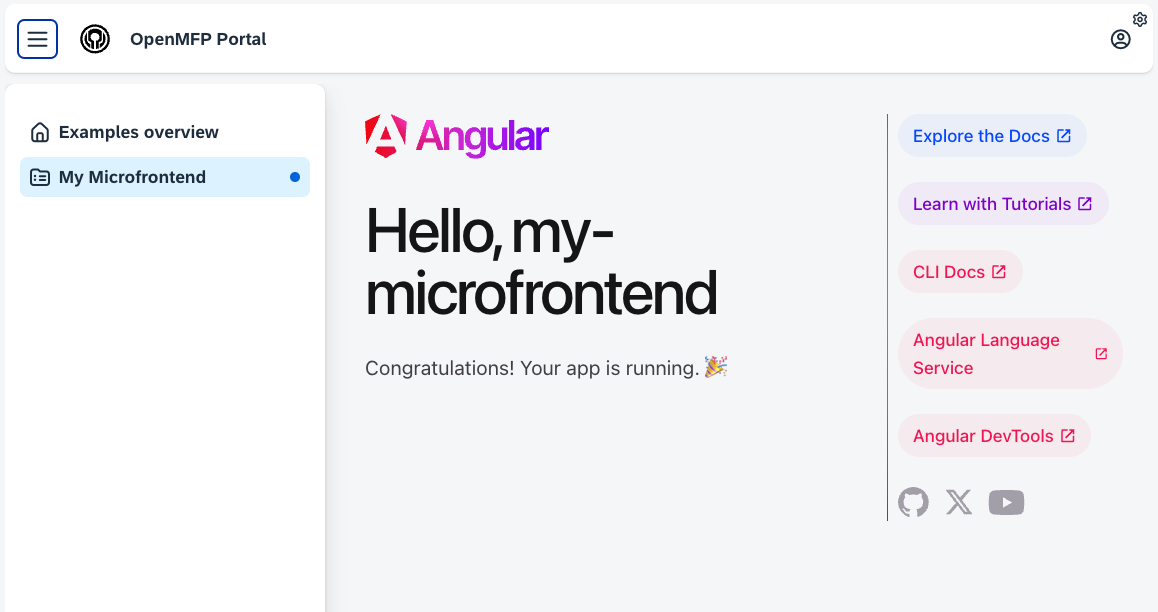
After successfully applying the configuration, your micro frontend should be visible in the OpenMFP portal.